Post-trade verification · timestamps · prices · trade history · October 2026
How to Verify a Digital Options Trade After It Closes
A chart screenshot is not enough to verify a completed Digital Options trade. Start with the platform’s own transaction record, identify the exact asset and product, normalize the timestamps, then compare the opening or reference price, strike where applicable, closing price, expiry and recorded result. External charts can add context, but only after you know what the platform actually settled.
How to Verify a Digital Options Trade After It Closes
Use the completed-trades or history panel, not a remembered chart position.
Match the asset, product label, direction, amount and trade or order ID.
Record opening, expiry and actual close time in the platform’s displayed time zone.
Check the opening/reference level, strike if applicable, and recorded closing price.
Do not begin by asking whether an external candle “looks right.” Begin by reconstructing the exact contract the platform says was opened and settled.
Start With the Platform’s Own Trade Record
The completed-trade record is the first piece of evidence because it shows what the platform itself says happened. Depending on the provider, that record can include the asset, direction, investment amount, purchase/open time, expiry or close time, opening and closing prices, payout or profit/loss, and a trade or order identifier.
Current official Quotex guidance describes trade history with the asset, Up/Down direction, invested amount, open and close time, opening and closing price, payout and trade ID. Pocket Option’s current education likewise describes Trading History records with order ID, timestamps, asset and trade type, entry and expiry times and the recorded result.
Those fields do not automatically establish that every price was correct. They establish the transaction record you need to verify. Without that record, a support request or chart comparison can easily drift toward the wrong asset, wrong session or wrong timestamp.
Record the Asset, Direction, Amount and Trade ID
Exact asset label
Write down the full instrument name, including an OTC suffix or other session label. EUR/USD and EUR/USD (OTC) should not be treated as interchangeable records.
Direction and amount
Record Higher/Lower, Up/Down, BUY/SELL or the selected strike condition together with the amount placed on the contract.
Trade / order ID
If the platform exposes an ID, save it. It is the cleanest reference for support to locate the same transaction you are examining.
A trade ID is an anchor, not a verdict. It connects screenshots, history and support correspondence to one record. If the platform does not show an ID in the normal history view, save the surrounding timestamp, asset and amount so the transaction can still be distinguished from nearby trades.
Check Open Time, Expiry Time and Actual Close Time
Digital Options are time-dependent contracts, so a price comparison without the correct timestamp can be meaningless. Save three moments separately: when the position opened, when it was scheduled to expire, and when it actually closed.
The normal contract endpoint selected before entry. See our Digital Options Expiry Time guide for duration-vs-clock interfaces and settlement mechanics.
The recorded close can differ from scheduled expiry if the product supports early Sell/Close or another manual exit. Treat the actual close time as a separate evidence field.
Also check the platform time zone. If you compare a broker timestamp with another chart or a screenshot taken on your device, convert both to the same time zone before deciding that two prices refer to the same moment. Pocket Option, for example, publishes a separate time-zone setting because trade and account timestamps depend on it.
Compare Opening, Strike or Reference, and Closing Prices
For a direct Up/Down or Higher/Lower contract, verify the price or reference level recorded around entry and the closing price used at the contract endpoint.
For a product such as IQ Option Digital, the chosen strike is a separate contract input. The relevant comparison is not simply whether price finished above or below the opening quote.
Copy the values from the completed transaction record before reading the chart. If the contract uses a selectable strike, save the selected strike as well. If the trade was closed early, save the close value and final history record rather than trying to reconstruct the outcome only from the scheduled-expiry candle.
The exact settlement logic belongs to the specific product. This page focuses on verifying the recorded transaction; the deeper distinction between opening/reference-price and selectable-strike contracts is covered in Digital Options vs Binary Options.
Use Historical Quotes When the Platform Provides Them
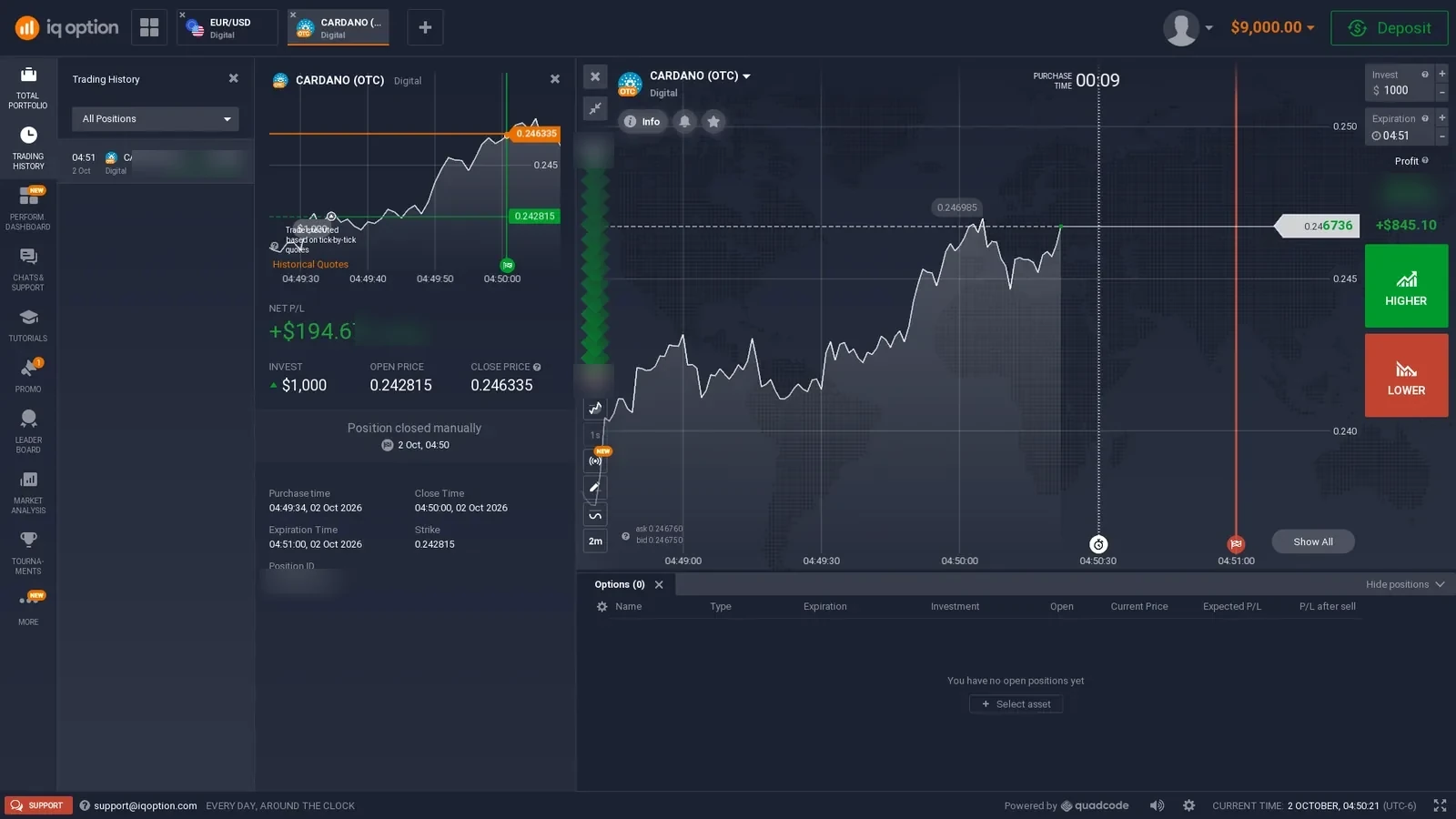
IQ Option currently publishes one of the clearest broker-side verification workflows. Its official guide tells users to open the trade history, choose the relevant asset, date and exact time in Historical Quotes, then compare the historical quote with the trade’s recorded opening and closing prices.
The same guide notes that the most recent 30 minutes are not displayed in that historical-quotes view. That matters operationally: a just-closed trade may need to age before the platform’s dedicated history tool becomes usable.
A broker-provided historical-quote page is useful because it lets you compare the transaction against the price history the platform itself publishes for that product. It still does not answer every question about the underlying feed, but it is a stronger first comparison than a random external chart with unknown session settings.
Primary-source notes: IQ Option official trade-verification guide, current 2026 update; Quotex official trade-history guidance; Pocket Option Trading History education. Broker-owned source links remain text-only under this site’s outbound-link policy.
Why an External Chart May Not Match the Broker Exactly
An external chart can be useful context, but a different candle or last price does not automatically prove that a broker trade was settled incorrectly. Two data products can display different values because they use different data vendors, include or filter different transactions, build candles differently or represent different parts of the quote.
IQ Option’s current quote education distinguishes Bid, Ask and an average price shown on the chart. TradingView separately documents examples where intraday OHLC values differ from other sources because of data-provider filtering and the transactions included in a bar. Those are reminders to identify the data definition before comparing two numbers.
Bid, Ask or midpoint
A chart can display one price while a contract or instrument rule uses another quote component.
Regular vs OTC/off-hours
The same ticker text does not guarantee the same session or price stream.
Time zone and bar boundary
A one-minute candle built in another time zone or from another feed can close at a different value.
OTC Trades Need a Separate Verification Standard
If the asset is explicitly labelled OTC, first verify what that label means on the platform you used. Do not remove the OTC suffix and compare the result with a normal spot, exchange or weekday chart as if the two instruments must share the same feed.
Our current first-hand evidence includes OTC-labelled assets and completed OTC demo trades across several platforms, including Quotex, BinoDex, Binolla, Pocket Option, Tickz and ExpertOption. The implementation is not identical across them. That is why our dedicated OTC Weekend Trading guide separates the visible ticker from the harder question of session and price source.
Match the exact platform instrument, exact session label and exact timestamp first. Only then decide whether an external price source is actually comparable.
Early Close Changes What You Need to Verify
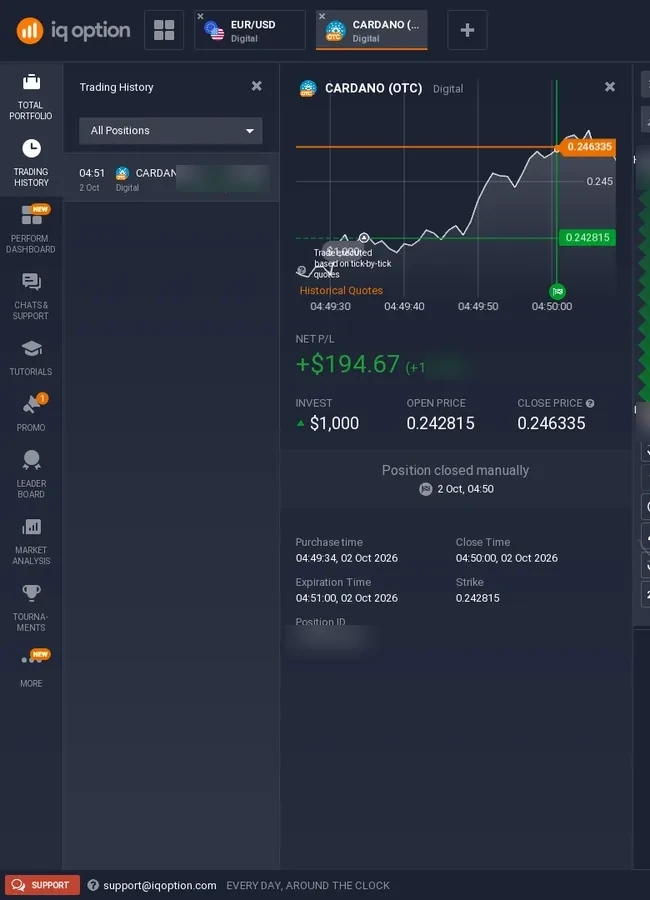
When a platform allows an early Sell or Close, the scheduled expiry no longer tells the whole story. Save the normal expiry, the moment the manual exit was requested, the amount or Sell/Close value shown before confirmation, and the final recorded close time.
We directly verified this distinction on IQ Option Digital, where Trading History recorded a position sold before expiration. We also captured early Close controls in Tickz and EO Broker Trading Mode. We do not transfer that mechanic to a brand unless the individual page has its own evidence.
For verification, the important question becomes: what value did the platform offer for the early exit, when was it accepted, and what final transaction record was created? Comparing only the later scheduled-expiry price can lead to the wrong conclusion because the position was no longer open then.
For a separate pre-exit display example, our Exnova Digital demo evidence shows Expected Return and Return After Sell as different values on an open position. That screenshot is a ticket-state record, not proof of a completed early sale.
What to Save If a Trade Result Looks Wrong
Asset, direction, amount, product, strike/reference, payout and trade ID.
Open, expiry and close timestamps plus the platform time zone.
Opening/reference, strike if used, closing price and any historical quote screen.
Full screenshots of the trade detail, history row and relevant support conversation.
Keep the original screenshots instead of only cropped fragments when possible. A full account screen can preserve the product label, status, time and surrounding controls that are lost in a tight crop. Redact personal identifiers before sharing evidence publicly, but keep an unedited private copy for your own records.
If the issue is no longer the trade result but a pending, rejected or missing withdrawal, move to the separate Withdrawal Problems workflow rather than mixing transaction-price evidence with a payment dispute.
What Our First-Hand Platform Evidence Shows
These screenshots document completed or active trade workflows. They are evidence of the interface and recorded history, not a universal claim about every account or future execution.
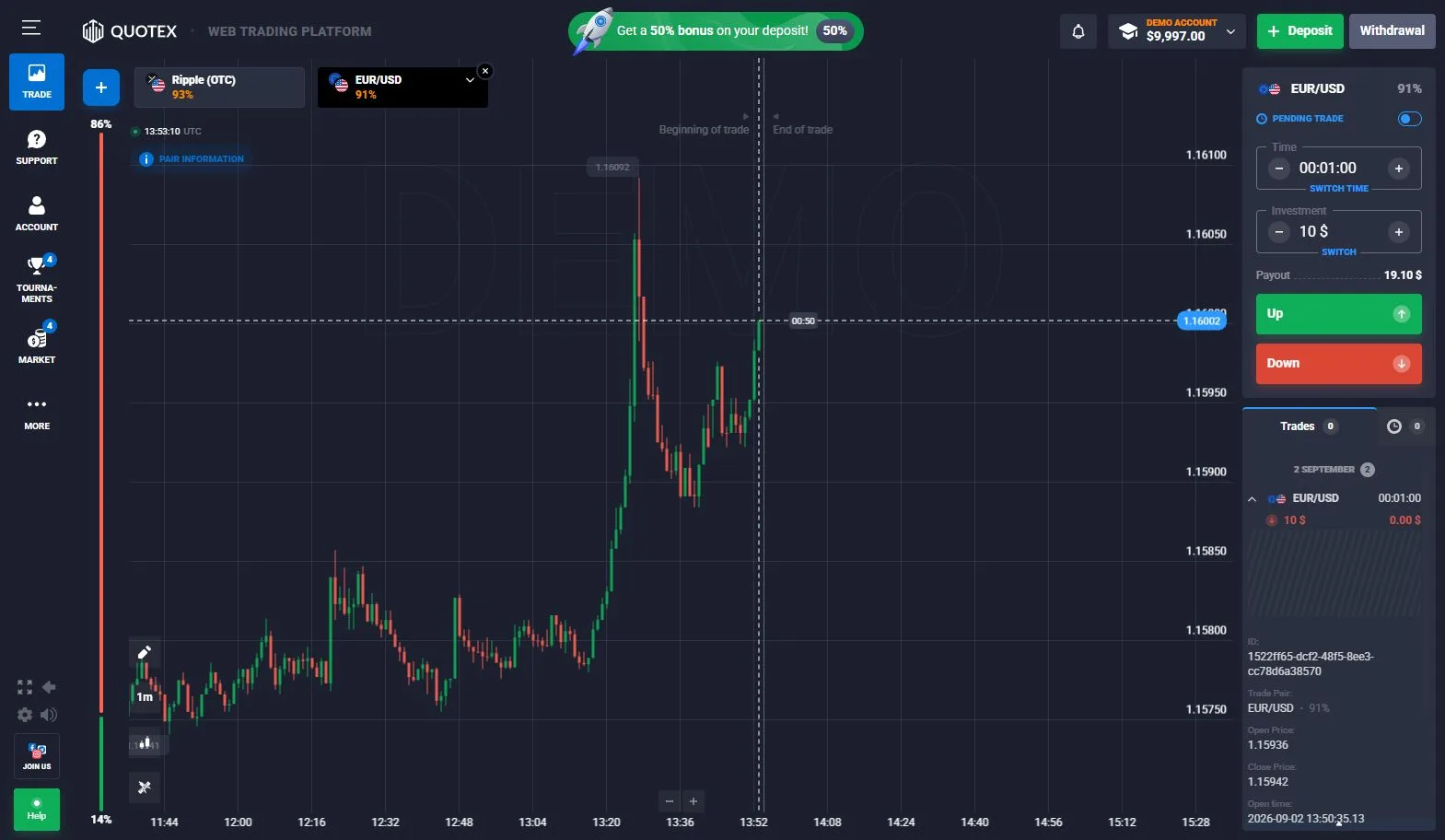
Quotex completed demo history
Our October 2026 check followed a demo position through settlement into the platform history. That establishes the order-to-history workflow used in the checked account.
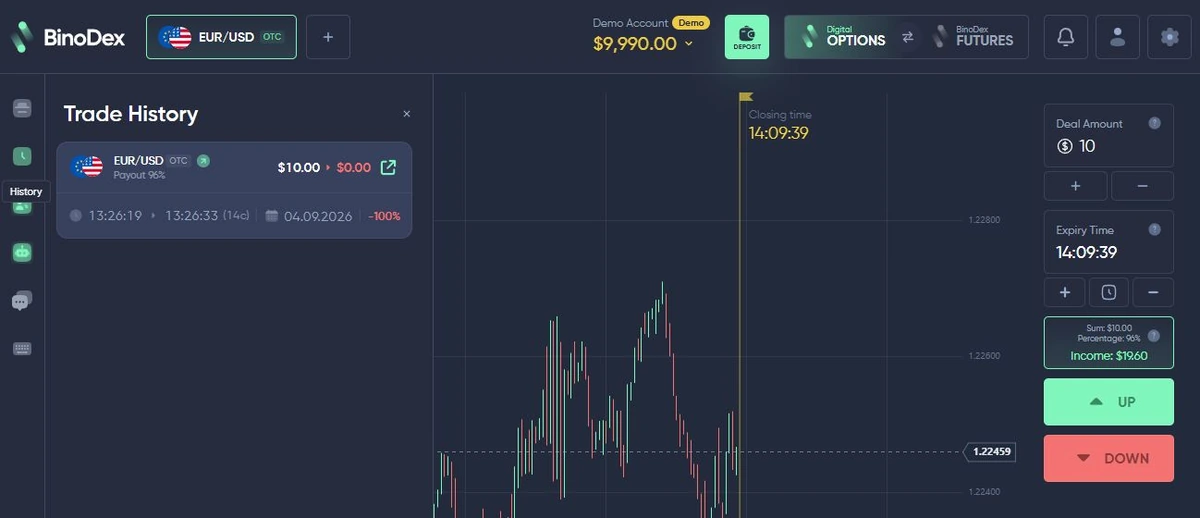
BinoDex EUR/USD OTC history
We completed a $10 EUR/USD OTC demo trade and confirmed the finished order in history, giving us a full setup-to-settlement evidence chain.
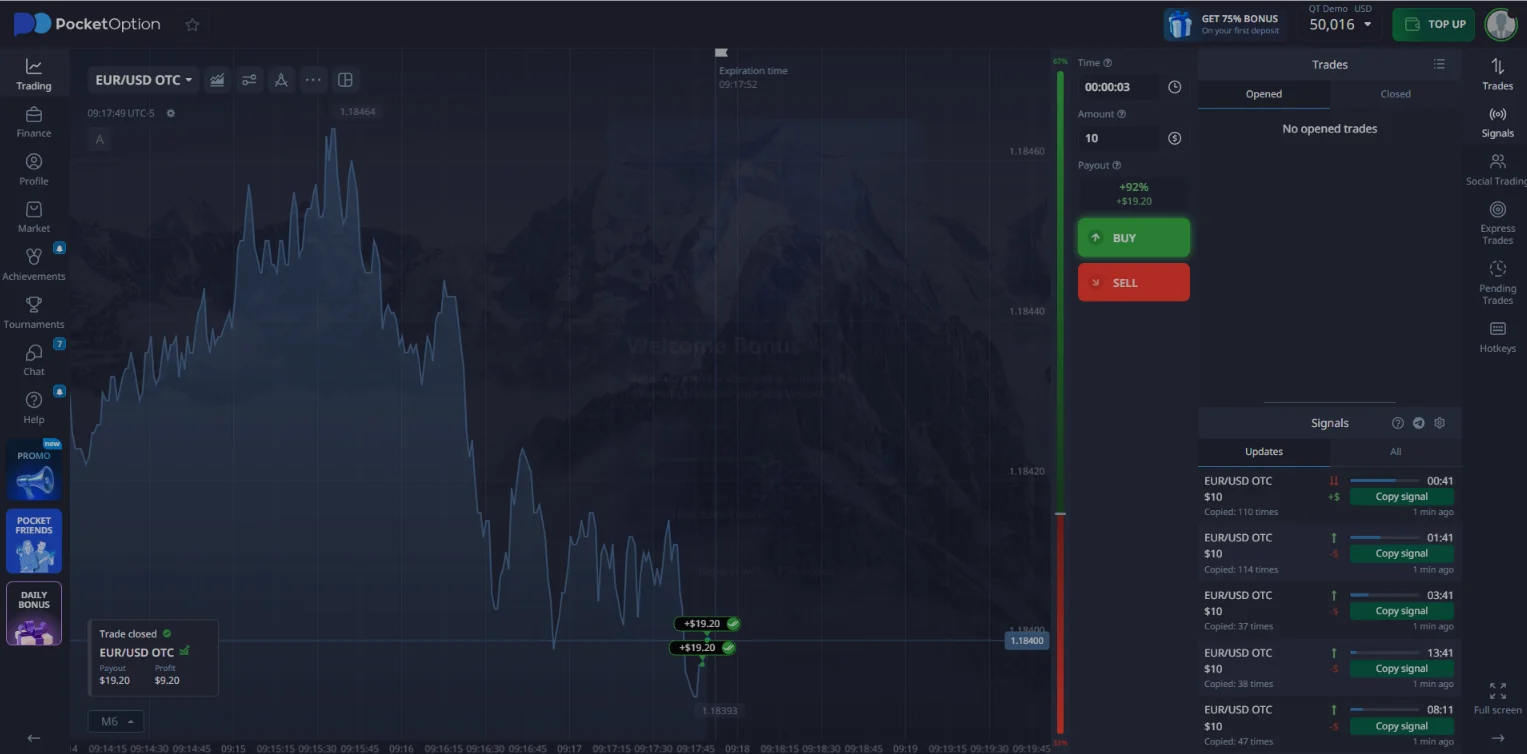
Pocket Option Quick Trading history
Our checked demo workflow included opened and completed Quick Trading records. Pocket Option’s own current education also identifies order ID, timestamps, entry/expiry and result as Trading History fields.
When to Contact Support and What to Send
Contact platform support when the transaction record and the price/time evidence still do not reconcile after you have checked the exact instrument, time zone, expiry/close time and available historical quotes. A vague message such as “the candle was wrong” gives support very little to investigate.
Trade/order ID, asset, account mode, trade amount and the exact open/close timestamps. If the trade was OTC or closed early, state that explicitly.
Attach the platform history screenshot, historical-quote screenshot if available, and the external chart only as a labelled comparison with its source and time zone.
Ask a specific question: which quote source and timestamp were used to settle this trade, or why does the recorded closing price differ from the platform’s own historical quote for the same instrument and time? That creates a much clearer evidence trail than arguing from a single screenshot.
Digital Options Trade Verification FAQ
Can I verify a digital options trade with TradingView?
TradingView or another external chart can provide useful context, but it should not automatically be treated as the platform settlement source. Data providers, session definitions, bid/ask handling, candle construction and time zones can differ. Start with the broker trade record and its own published quote source or historical-quote tool where available.
What details should I save from a completed trade?
Save the asset, product label, direction, amount, opening time, expiry or scheduled close time, actual close time, opening or reference price, strike where applicable, closing price, payout or result and the trade or order ID if the platform shows one.
What if the price on an external chart is different?
First confirm that you are comparing the same instrument, session and timestamp in the same time zone. Then check whether the platform uses bid, ask, midpoint, its own quote source or an OTC-labelled instrument. A small chart difference alone does not identify the cause of a trade result.
Can an OTC trade be verified against normal EUR/USD or another public market chart?
Not by assumption. An OTC-labelled contract may use a different session or price source from a standard market instrument with a similar ticker. Verify the exact OTC instrument and the platform rules before using an external chart as a comparison.
What does a trade ID prove?
A trade or order ID identifies the platform record and is useful when asking support to investigate a specific transaction. It does not by itself prove that the quote source or settlement method was correct.
How do I verify a trade that was closed early?
Record the scheduled expiry and the actual manual close time separately. Save the early-close amount or Sell value shown before confirmation and the final history record after the position closes. The normal expiry price is no longer the only relevant endpoint.
Does a completed demo trade prove real-money execution is identical?
No. A completed demo trade proves the workflow visible in that practice environment: ticket setup, opening, timing and the recorded result. It does not establish that every real-money execution, quote source or account condition will be identical.

Alex checks live trading interfaces, demo workflows, completed trade history, cashier data and verification screens for DigitalOptions.co. This guide combines those first-hand records with current primary-source documentation.