Bynix Broker · Account access · Free demo · OTC trading
Trade on Bynix: Free Demo, OTC Markets & Funded Challenges
Find the right way into Bynix Broker: create an account, return to your login or open a $10,000 virtual demo. This guide brings together the trading terminal, app installation, account choices and payment options, so you can choose where to start.
DigitalOptions.co is an independent platform guide. The platform button is a sponsored affiliate link; it opens the broker’s service, not a DigitalOptions account.
- $10,000Virtual demo balance
- 24/7OTC-market access described by the platform
- From $2Entry-level Funded challenge fee
Four useful things we found inside Bynix
The demo screen opens a virtual balance for trying the trading ticket without a deposit.
Explore the demo →A quick demo and full email-code registration are separate account entry paths.
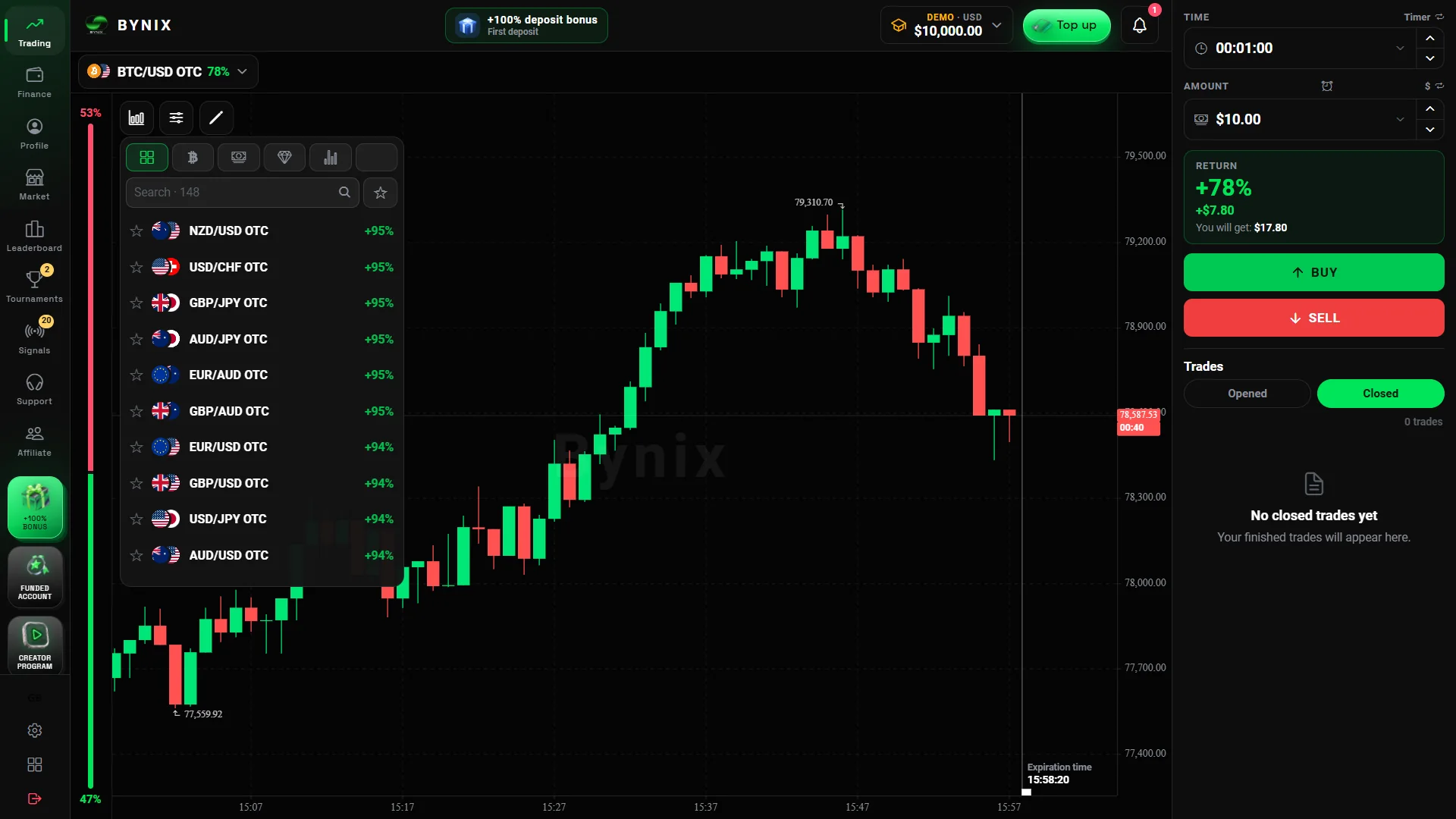
Registration steps →Our recording shows OTC asset selection, CALL/PUT controls, expiry options and quoted returns.
See the trading screen →One screen shows $10 as a starting amount; the USDT TRC-20 form displays $5. The withdrawal area shows a KYC prompt.
View cashier screens →Start here
Choose Your Way In: Demo, Sign Up or Login
There are three practical entry points, and they are not interchangeable. A visitor who only wants to see the chart does not need the same sequence as someone creating a permanent account. An existing customer should go straight to sign-in rather than start a second registration.
Try a free demo
Open the practice environment, explore the trading ticket and work with virtual funds. No real-money deposit is needed.
How the demo worksCreate a new account
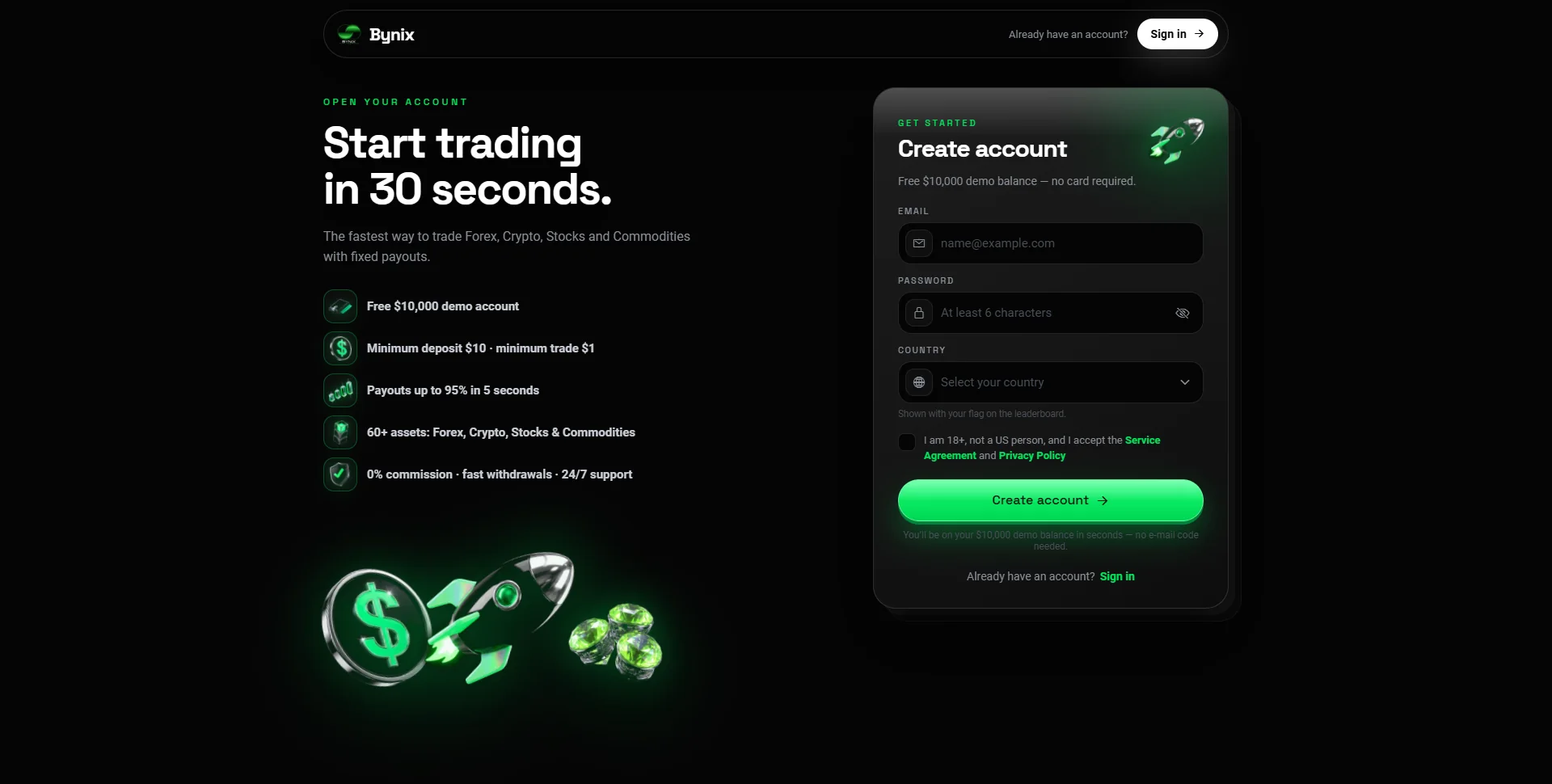
Register with an email address, password and applicable country details, then complete the one-time email-code step.
Registration instructionsLog in to your account
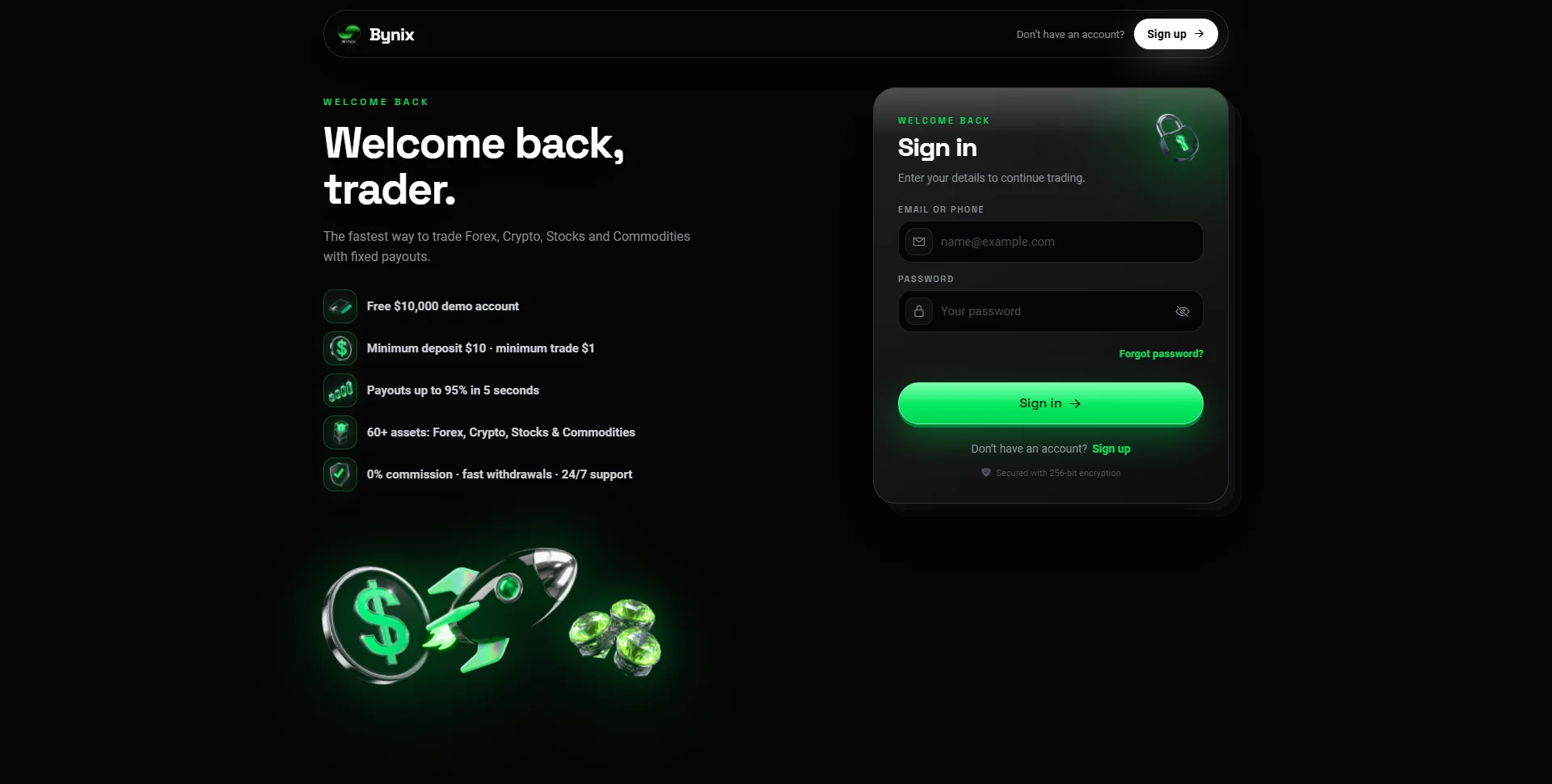
Already signed up? Open the login form, enter your existing credentials and return to the terminal or balance selector.
Sign-in and recoveryFastest route to exploration: begin with the free demo if you want to understand the screen first; use full registration when you are ready for an account that preserves your profile and account access.
Account access
Registration and Login: Your First Steps
Bynix Broker registration and login share the same platform but solve different problems. New users create credentials; returning users reuse them. The registration guide published by the platform describes a six-digit email confirmation code before the full account opens.
Create an account
- Use Open Bynix Platform and select the registration option on the destination page.
- Enter your email address, create a password and choose your country where the form requests it.
- Review the account requirements and submit the form.
- Check the inbox associated with that email address for the six-digit confirmation code.
- Enter the code to finish registration and open the trading workspace.
Once inside, the account selector is the next useful control: it separates virtual practice funds from the real-money balance and any funded account the user may later choose. Registering does not require making a deposit immediately.
Already registered? Sign in
Choose Log In, enter the email and password used during registration, and sign in. On smaller screens, the login link may sit inside the main menu. If the session opens in the wrong account mode, use the balance selector to switch to Demo or the account you intended to view.
If the email code does not arrive
Check the spam or promotions folder, confirm that the address was typed correctly, and use Resend code if the initial code expired. Do not keep attempting an expired code. If you already created the account, use the login or password-recovery route instead of repeating registration with another address.
Which route should you use? New account = sign up and email code. Returning customer = log in. Quick platform preview = free demo. That distinction avoids the most common unnecessary steps.
Practice first
Start with a $10,000 Free Demo
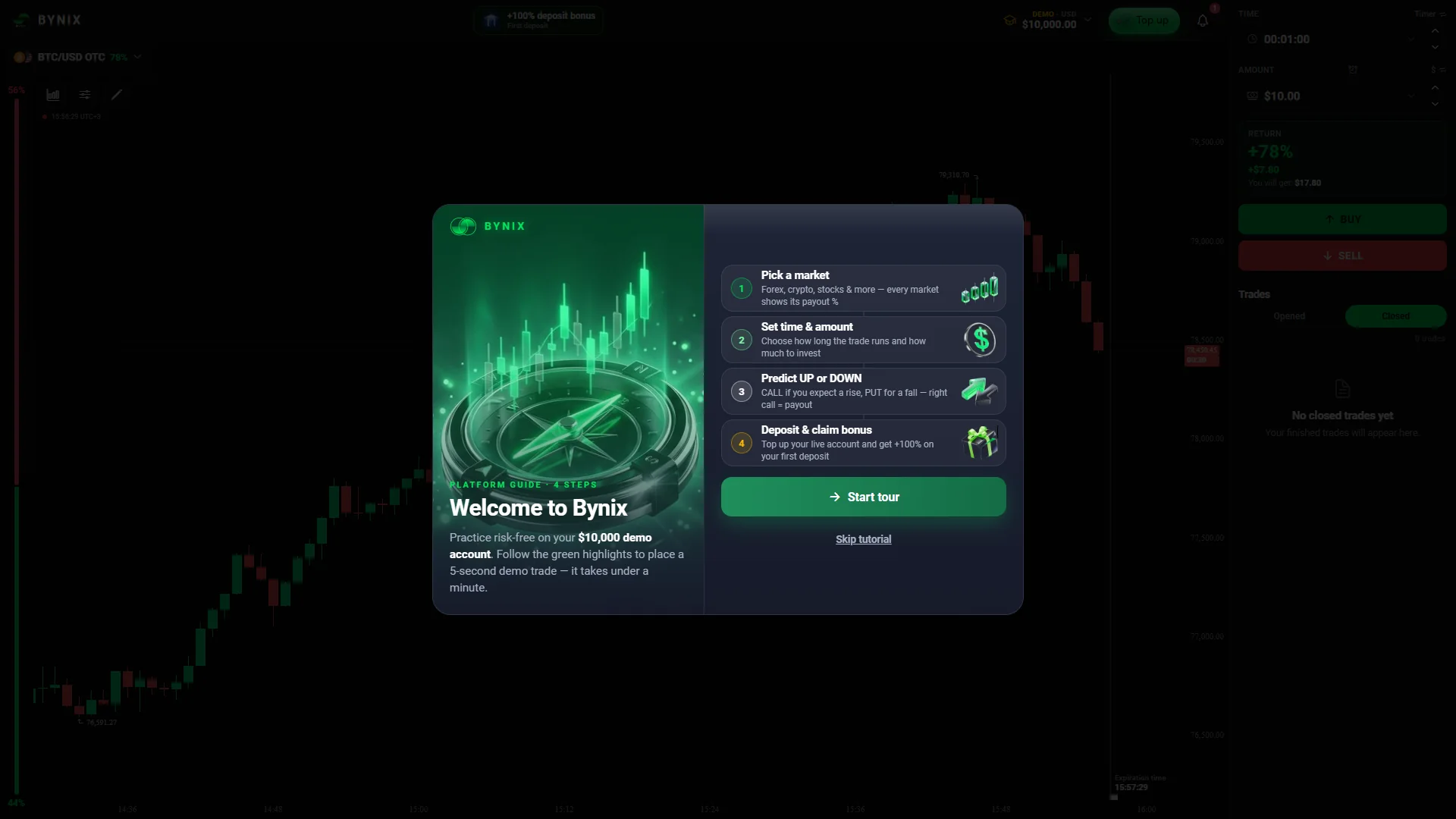
The demo is one of the most useful starting points for a new Bynix visitor. The platform describes a one-tap free-demo route with $10,000 in virtual funds, without a card, deposit or the full email-verification sequence required for account registration. This is practice money, not a withdrawable balance.
- Open the platform and choose the free-demo entry when it is offered.
- Find the Demo label or switch the top balance selector to the demo account.
- Choose a market, set a virtual stake and select a contract duration.
- Read the displayed payout, then choose CALL or PUT to open a practice contract.
- After expiry, open Trade history to review the entry, closing price and demo result.
What happens when your virtual balance runs low?
Bynix’s account instructions describe a Refill demo control in the balance menu, with the possibility of setting a custom virtual amount. You can therefore repeat the workflow without adding real money. The same account selector is used to move between Demo, Live and Funded modes where those modes are enabled.
Demo versus registered account
| Feature | Free demo | Registered account |
|---|---|---|
| Purpose | Explore the interface and practice contracts | Maintain your account and choose account modes |
| Starting balance | $10,000 virtual funds | Real balance begins separately; no deposit required just to register |
| Email-code step | Instant demo route described without it | Part of the standard registration flow |
| Withdrawable money | No | Only eligible real funds, under the payment rules |
The demo uses the platform’s trading interface, but a successful virtual trade is not a promise about future real-money results. For an initial visit, the value is practical: you can understand the chart, expiry selector and order history before choosing another account mode.
Trading controls
Inside the OTC Trading Terminal
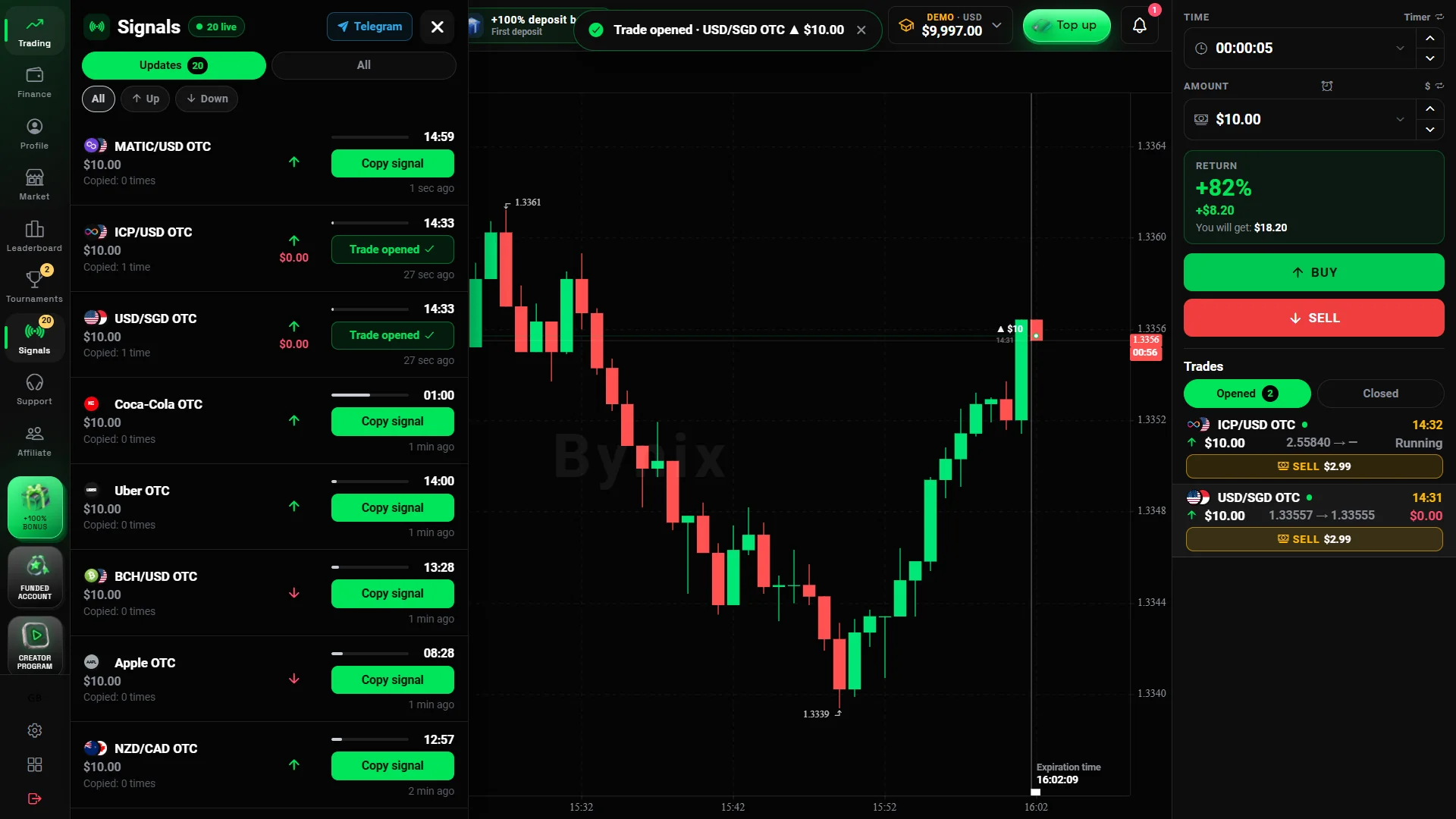
The terminal follows a direct contract workflow. Select the instrument, choose the amount, set the time, read the available payout and decide whether the closing price will be above or below the opening price. You do not need to learn every indicator before understanding those core controls.
ORIGINAL PLATFORM WALKTHROUGH · 2:38
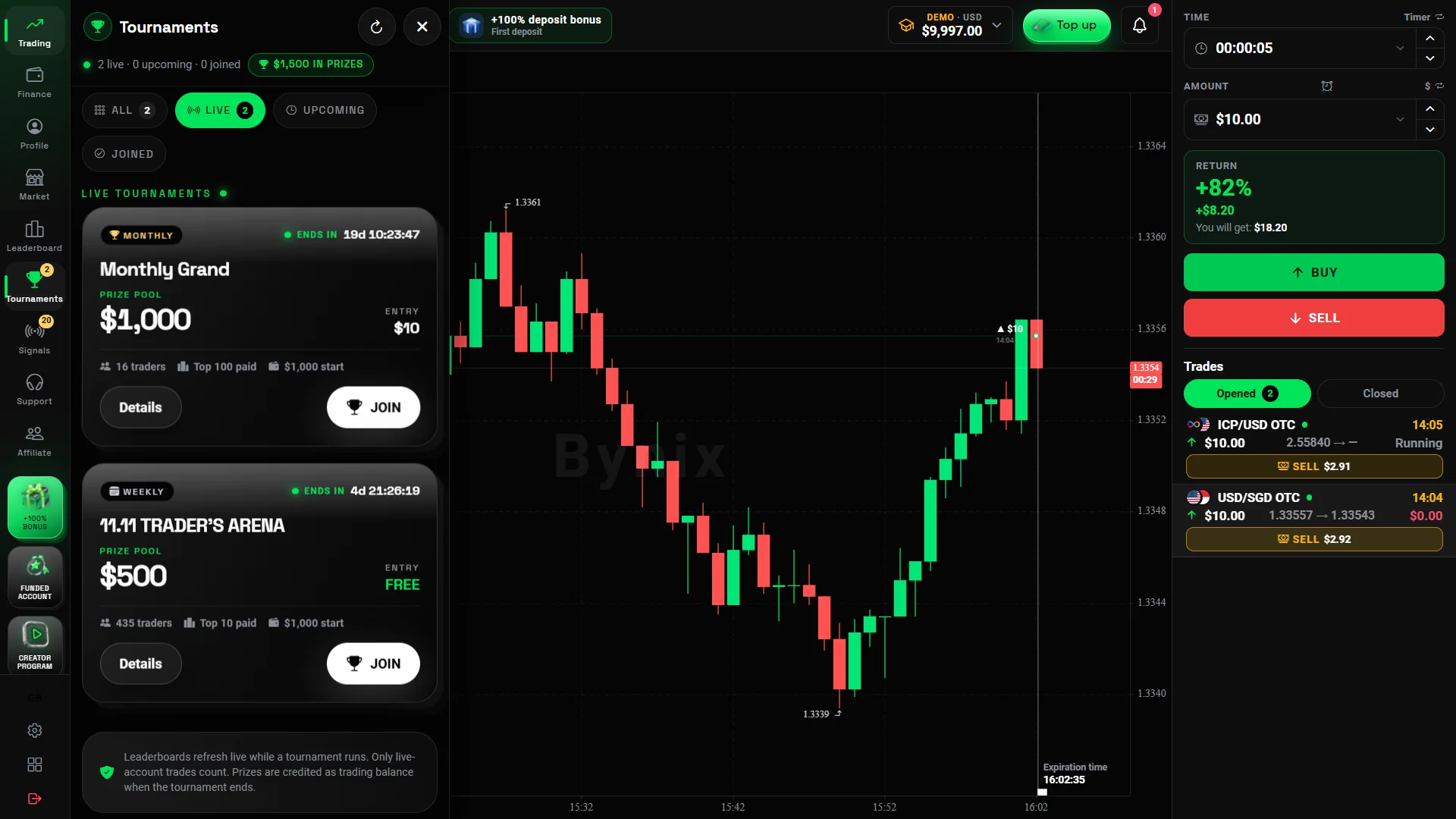
Watch the original Bynix screen recording: account access, OTC demo trading, chart tools, tournaments and finance menus. The recording uses demo funds.
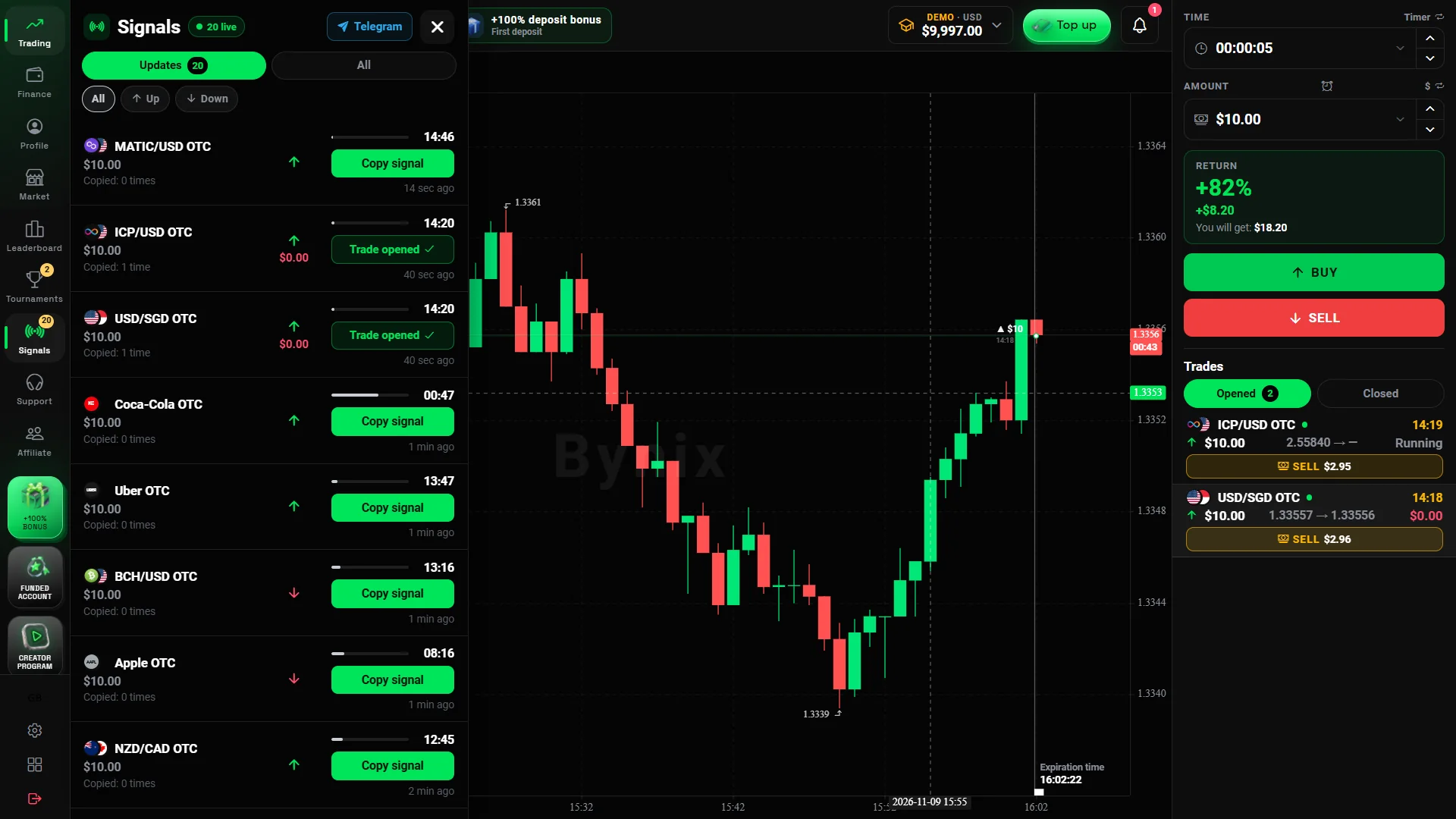
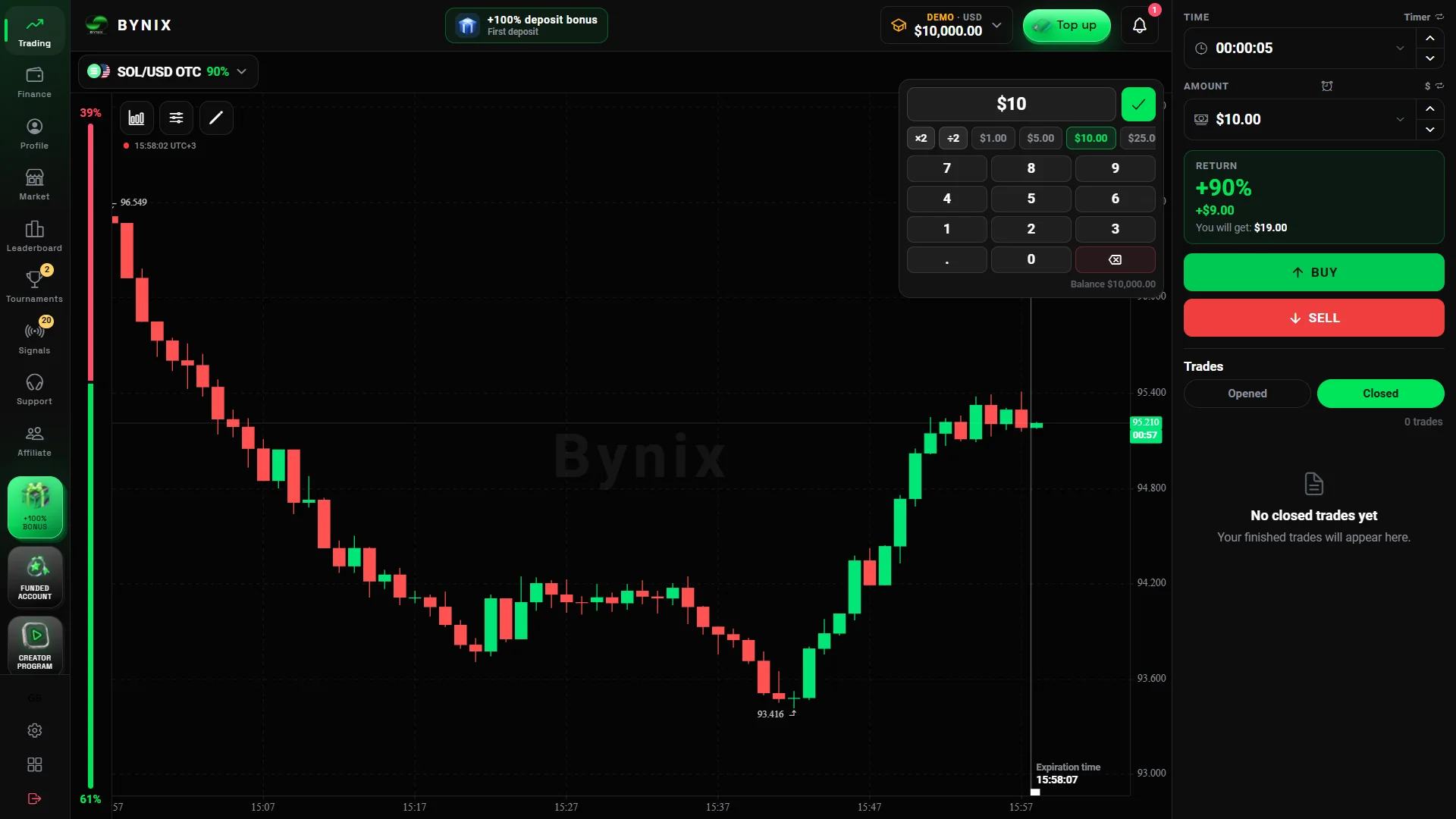
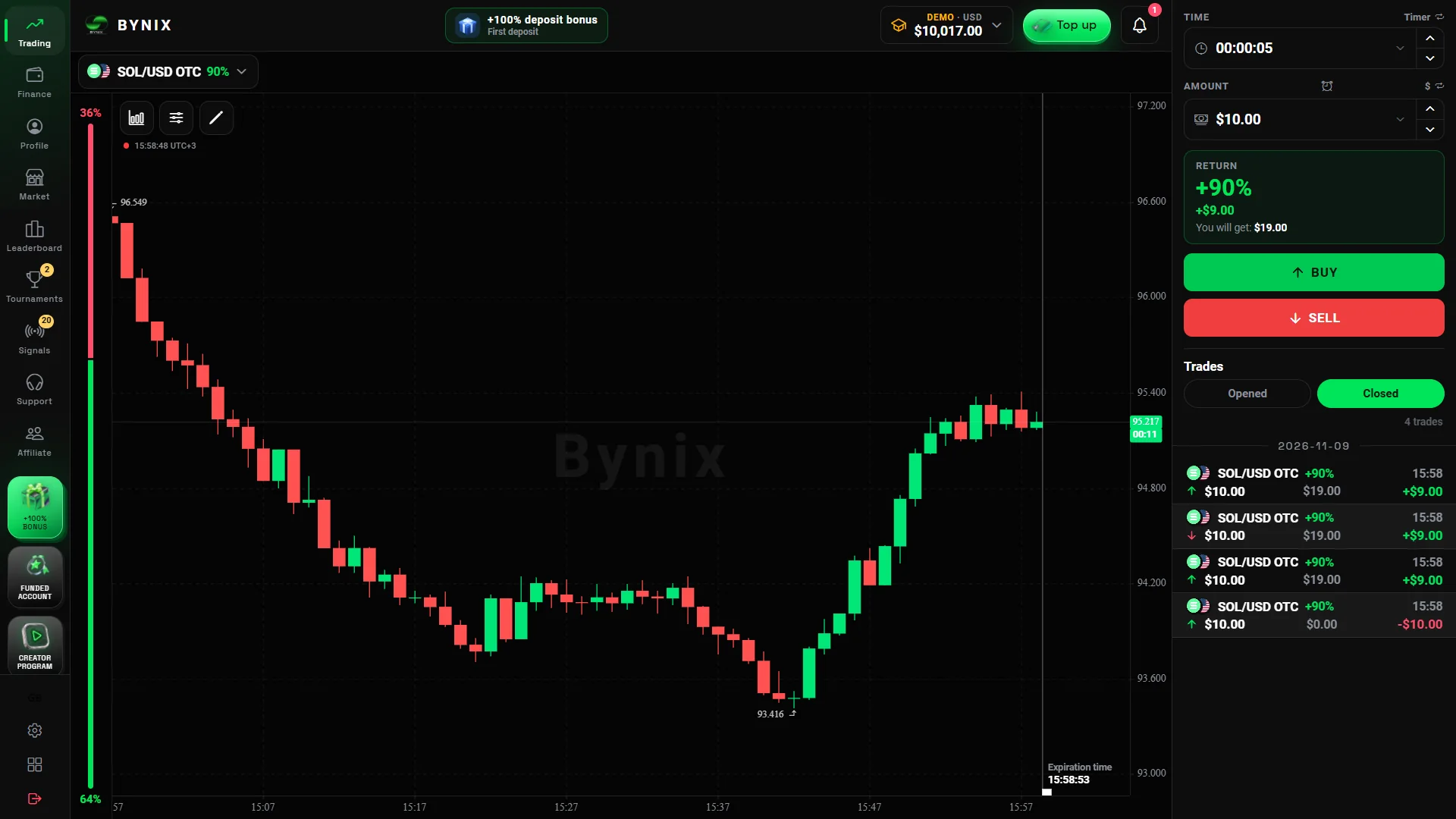
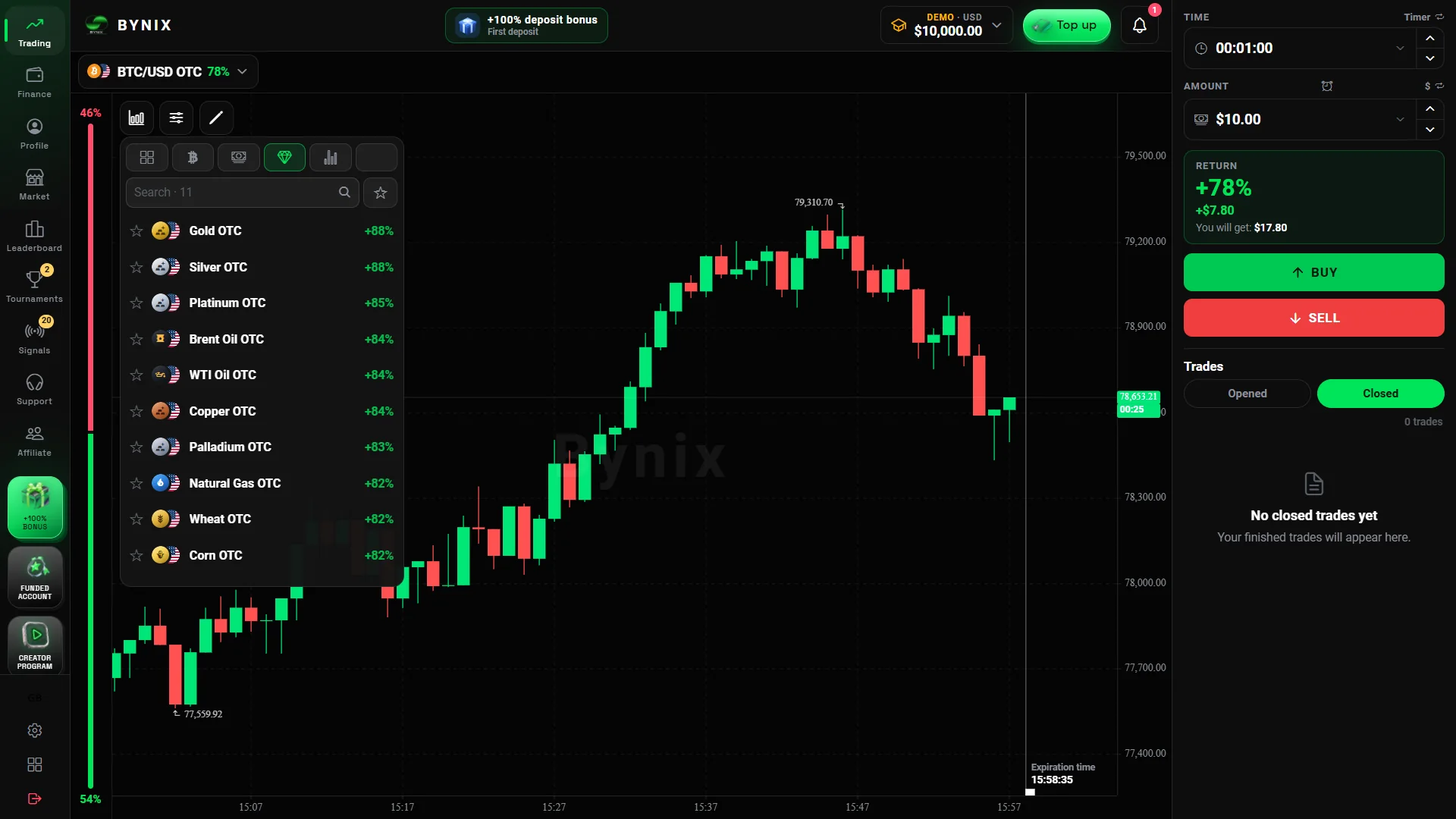
Find an asset and understand the chart
Use the asset selector to browse instruments such as BTC/USD OTC or EUR/USD OTC. The chart offers candlesticks and configurable timeframes, while the tool area provides indicators and drawing options. Bynix describes RSI, MACD, Bollinger Bands and other indicators, as well as saved chart annotations for different assets.
Choose duration and stake
The trading ticket includes an investment amount and an expiry control. The platform’s walkthrough distinguishes TIMER mode, which sets a duration such as one minute, from TIME mode, which targets a clock time. The selected market, duration and offered payout all belong to the specific contract you are about to open.
Open a CALL or PUT contract
CALL expresses the view that the price will close higher than the opening rate; PUT expresses the opposite. Confirm the stake and payout before selecting either direction. A running position displays its entry and countdown, and the completed contract can be examined in Trade history.
Products and timing
Markets, Expiry Times and Contract Payouts
Bynix advertises round-the-clock access to OTC-labelled contracts across forex, cryptocurrencies, metals and index-style products. Availability, payout and duration are properties of the selected ticket: do not assume every listed market offers the same settings at every moment.
| Market group | Examples and what to look for | Trading-screen check |
|---|---|---|
| Forex OTC | Currency-pair names such as EUR/USD OTC | Confirm the OTC suffix and current payout |
| Crypto OTC | BTC, ETH and other crypto-linked contracts | Compare available durations by instrument |
| Gold and silver | Metal-labelled contracts | Read the exact market name before opening |
| Indices / volatility | Index-style and volatility-labelled markets | Review timing and settlement conditions |
The platform advertises expiries starting at five seconds and reaching one day in some areas. These are overall product ranges, not a promise that every contract permits every duration. A selection of short and long timeframes also does not mean that the chart timeframe is necessarily the same thing as contract expiry.
What does a payout of up to 95% mean? It is the profit percentage on a winning contract when that rate is offered, not a 95% probability of winning. For example, a $10 stake with a 90% quoted profit would yield $9 profit on a win, with the original stake also returned. The amount at risk on a losing contract is separate. Read the displayed percentage for the exact asset before confirming.
For a wider explanation of how OTC-labelled instruments can differ from regular-market instruments, see our OTC weekend trading guide. This background is especially useful when a currency-pair chart remains active outside standard forex hours.
Mobile and desktop
Bynix App on Android, iPhone and Desktop
You can use Bynix from a browser, and its mobile pages describe an installable web-app experience. This matters when searching for a Bynix app download: installing a website as an app is not the same as obtaining a standalone Android APK file.
Android: install from the browser
- Open the platform in Chrome or another supported Android browser.
- Open the browser menu and look for Install app or Add to Home screen.
- Confirm the shortcut; launch Bynix from your home screen and log in with the same account.
The operator’s current app section describes this browser-based installation while also labelling the downloadable APK as coming soon. Do not install an APK from an unverified third-party site.
iPhone and iPad: add to Home Screen
- Open the platform in Safari.
- Tap the Share control and select Add to Home Screen.
- Confirm the app name and open the new icon.
The home-screen version uses the mobile trading interface without requiring an App Store listing.
PC and Mac: desktop access
On Windows or a conventional PC, open the trading workspace in a supported browser. On compatible Macs, Safari’s File → Add to Dock option can provide a dedicated launcher. Trading controls and account modes remain part of the web service.
Which version should you choose? Browser access is the simplest way to start. Use the home-screen option if you prefer an app-like launcher on your phone. If you specifically need a Bynix APK, check the platform’s currently published download availability rather than assuming a file already exists.
Alternative account models
Bynix Funded: Challenges and Account Options
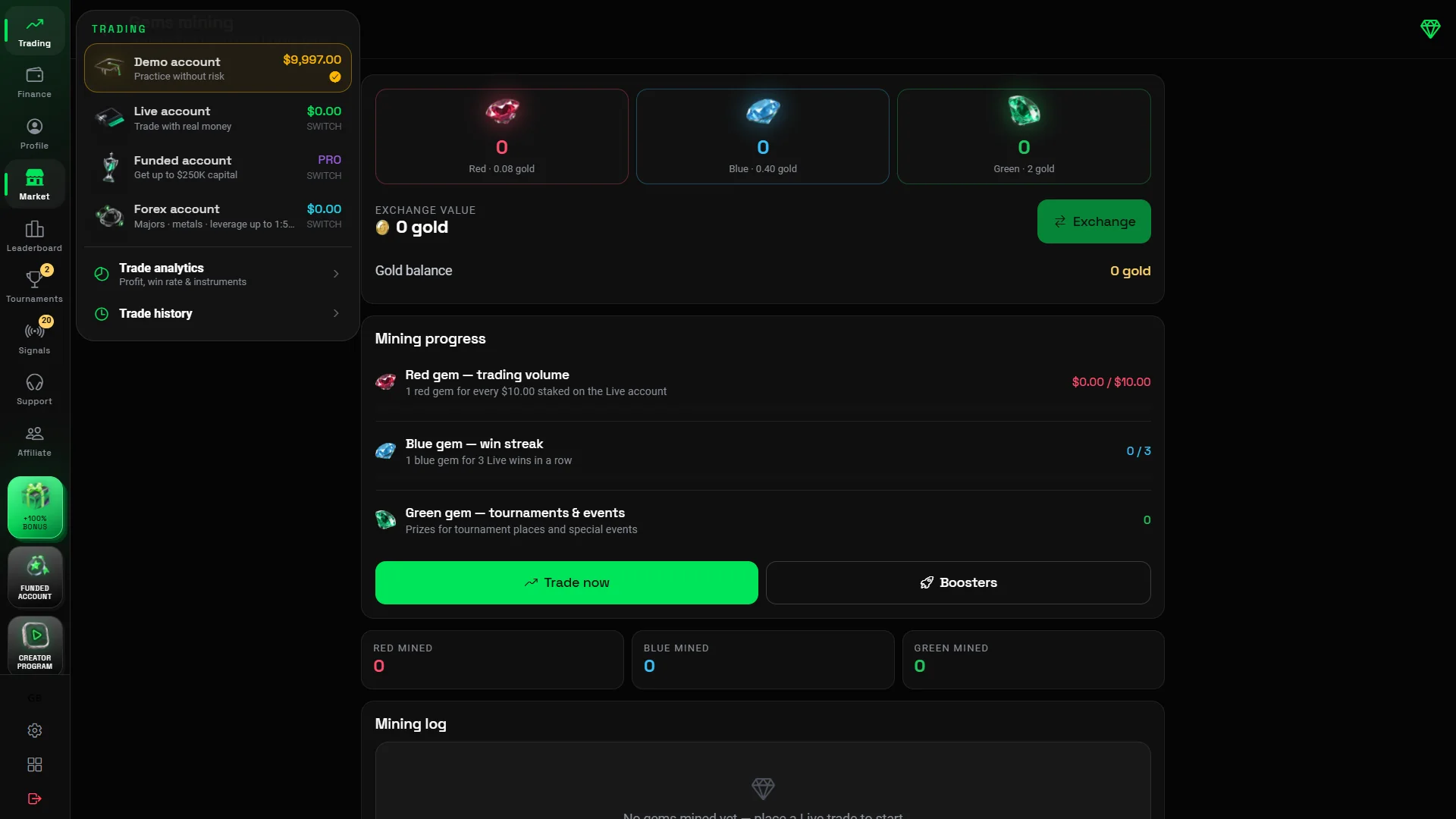
Alongside the practice and real account modes, Bynix Funded is an evaluation-based programme with a separate fee and rule set. The platform lists starting challenges from $2, possible funded balances up to $250,000 and profit shares up to 85%, depending on the chosen programme.
The first decision is not the account size. It is whether you want a direct model or a challenge with evaluation phases, because each uses different entry fees, progress requirements and account conditions.
| Model | How it works | What to compare |
|---|---|---|
| Direct | Described as access without the usual evaluation profit target | Higher fee, adjusted profit share and ongoing account rules |
| 1-Phase | One evaluation stage before qualification | Target, daily-loss limit and maximum drawdown |
| 2-Phase | Two evaluation stages | Targets for both phases and total completion requirements |
| 3-Phase | Three evaluation stages | Stage-by-stage objectives and entry cost |
For a concrete example, the current public Funded overview lists a $1,000 account tier with a $2 challenge fee and higher-priced tiers at larger balances. Those headline amounts do not replace the active checkout rules. Compare the profit target, maximum drawdown, daily loss, minimum trading days and profit-share percentage before selecting a tier.
Demo, real balance or funded challenge?
Choose the free demo to learn the screen without a payment. Choose the standard registered account to keep a profile and access the regular account options. Choose Funded only if the particular evaluation model, its fee and its trading limits match the way you intend to use the terminal. A funded balance is programme capital under its rules, not cash granted to the customer simply for signing up.
Account funding
Deposits, Withdrawals and Welcome Bonus
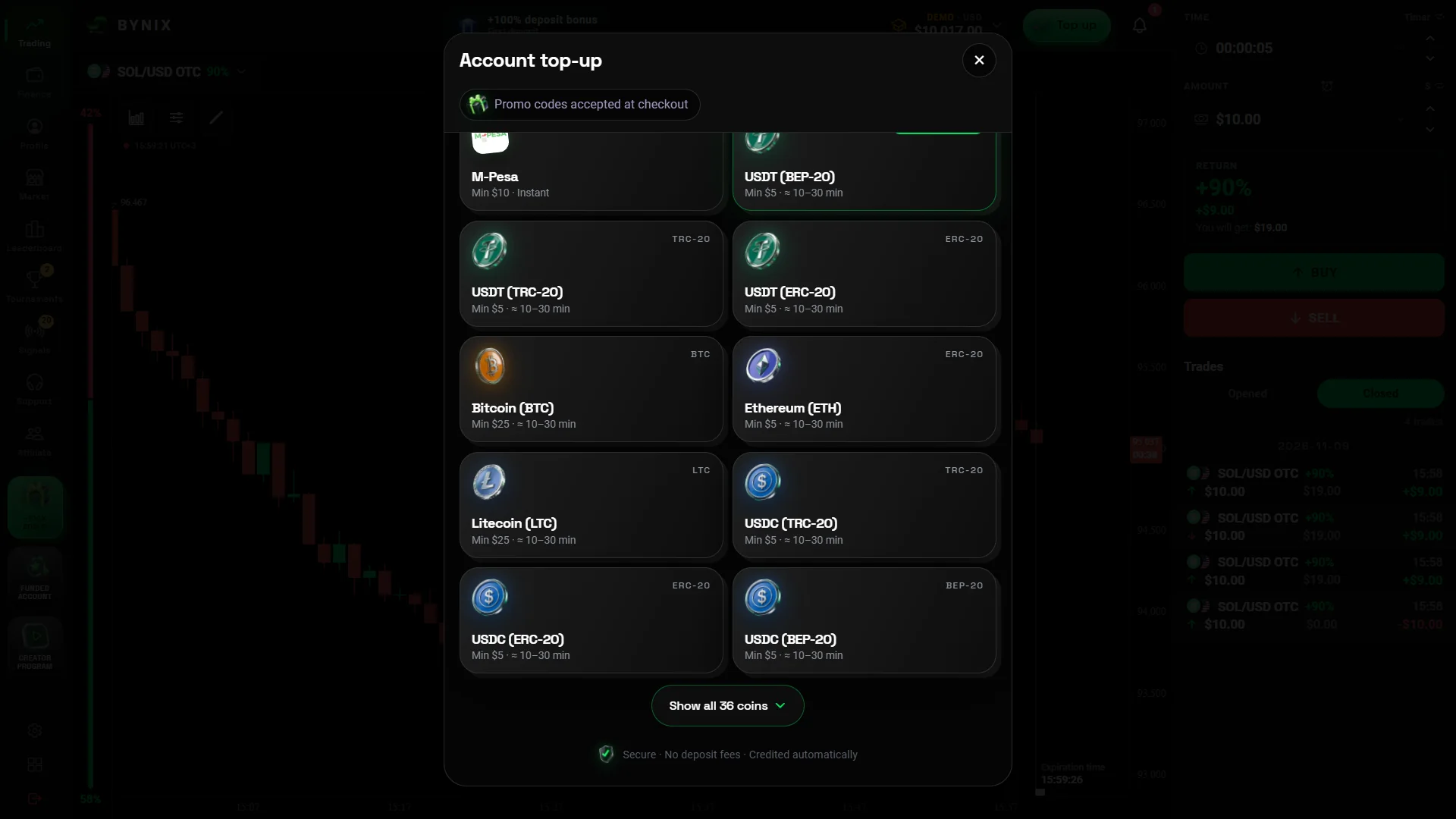
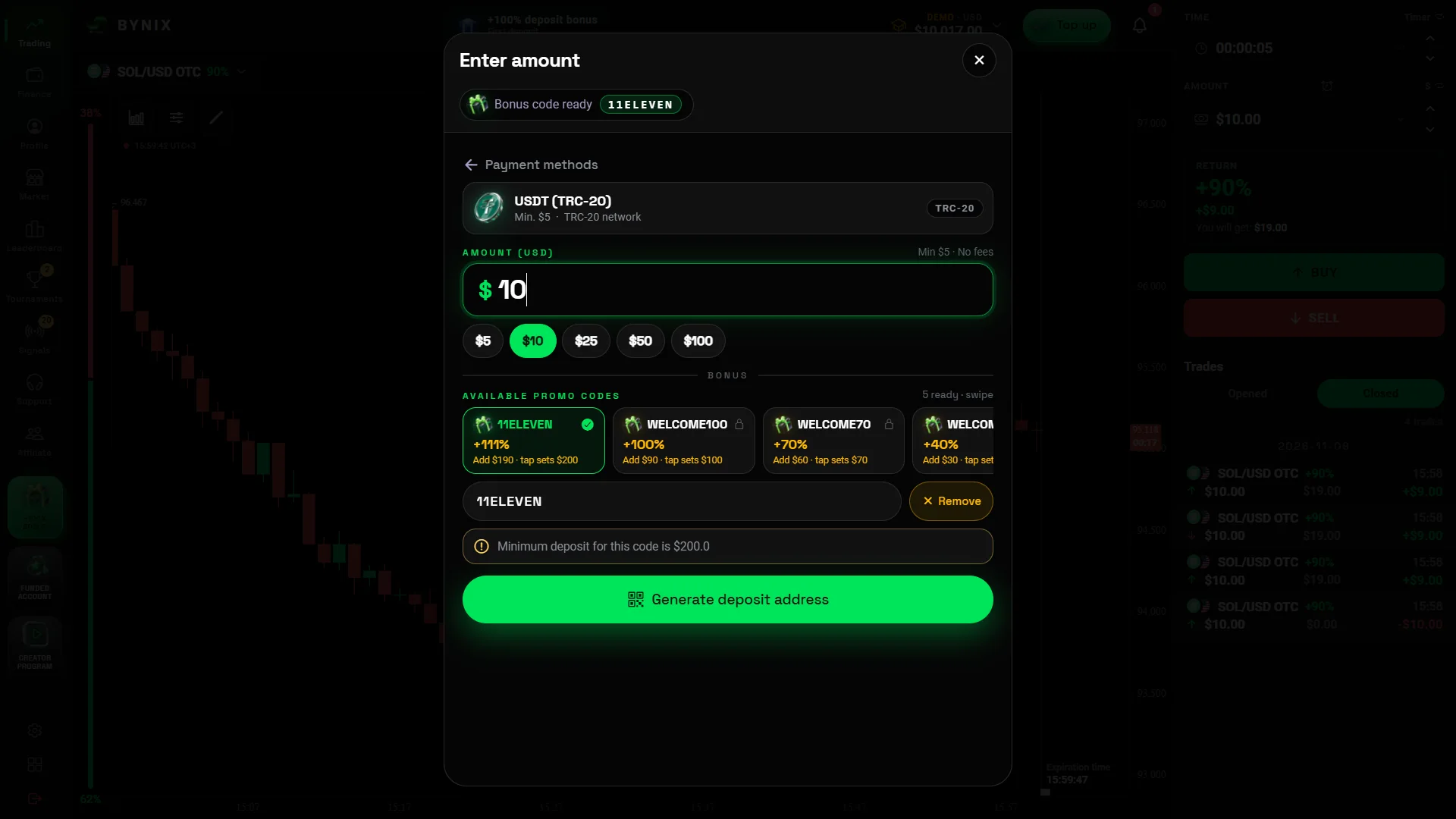
The Bynix registration screen advertises a $10 minimum deposit, while our captured USDT TRC-20 cashier displayed a $5 minimum for that specific method. Other public payment cards have shown different amounts. These figures describe the displayed routes, not a universal minimum for every country or currency.
| Payment route | Publicly displayed starting amount | Useful detail |
|---|---|---|
| bKash | From $10 equivalent | Local-wallet option shown for Bangladesh accounts |
| Nagad | From $10 equivalent | BDT payment workflow where supported |
| USDT TRC-20 (captured cashier) | $5 shown in the recorded form | Other payment routes can show different minimums; verify the selected network |
| Other crypto | Varies by currency and route | Use the live deposit screen for the current minimum |
Finding the deposit and withdrawal controls
Once signed in, switch to the relevant account mode and open the balance, wallet or Finance area. For a deposit, select the payment method first, then read the minimum, network and instructions displayed for that route. You can inspect those options without completing a payment.
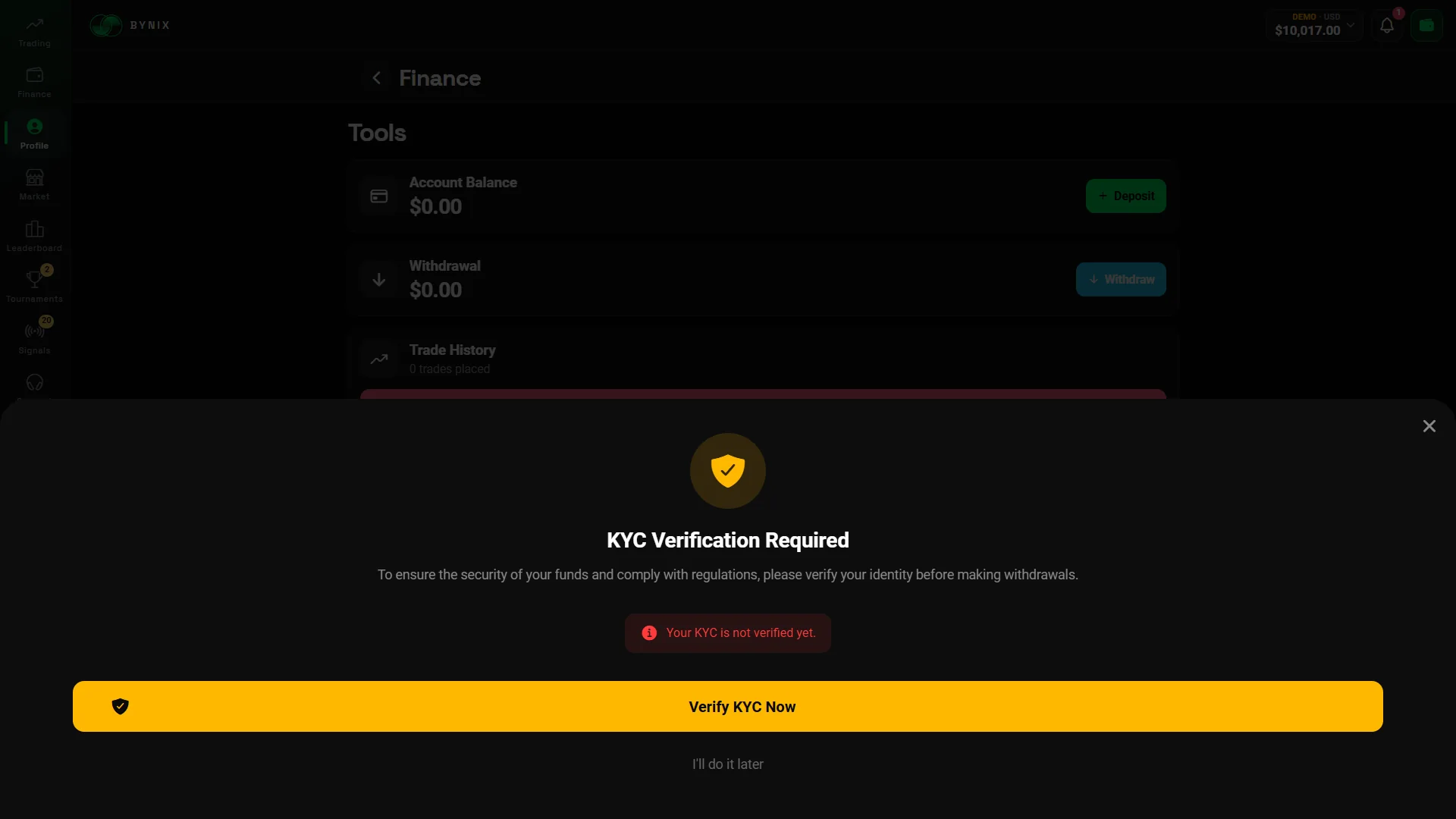
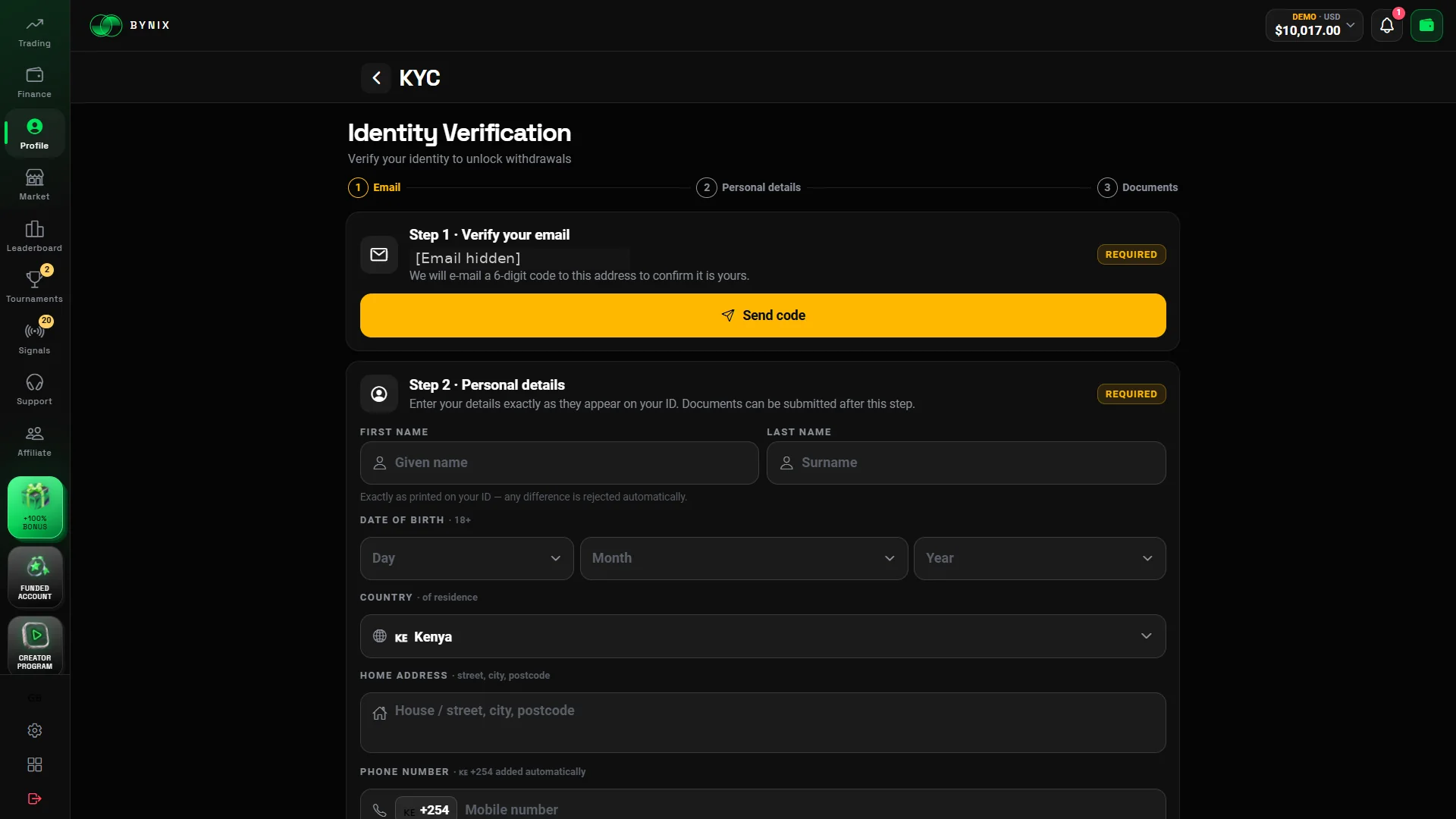
The platform describes withdrawal requests through the account’s Finance area, with confirmation steps that may include an email code and identity verification. It promotes automated processing in about 30 seconds, but the time shown in marketing is not a universal guarantee for every payment route or account review. Check the conditions presented for your method before submitting a request.
How the first-deposit bonus is presented
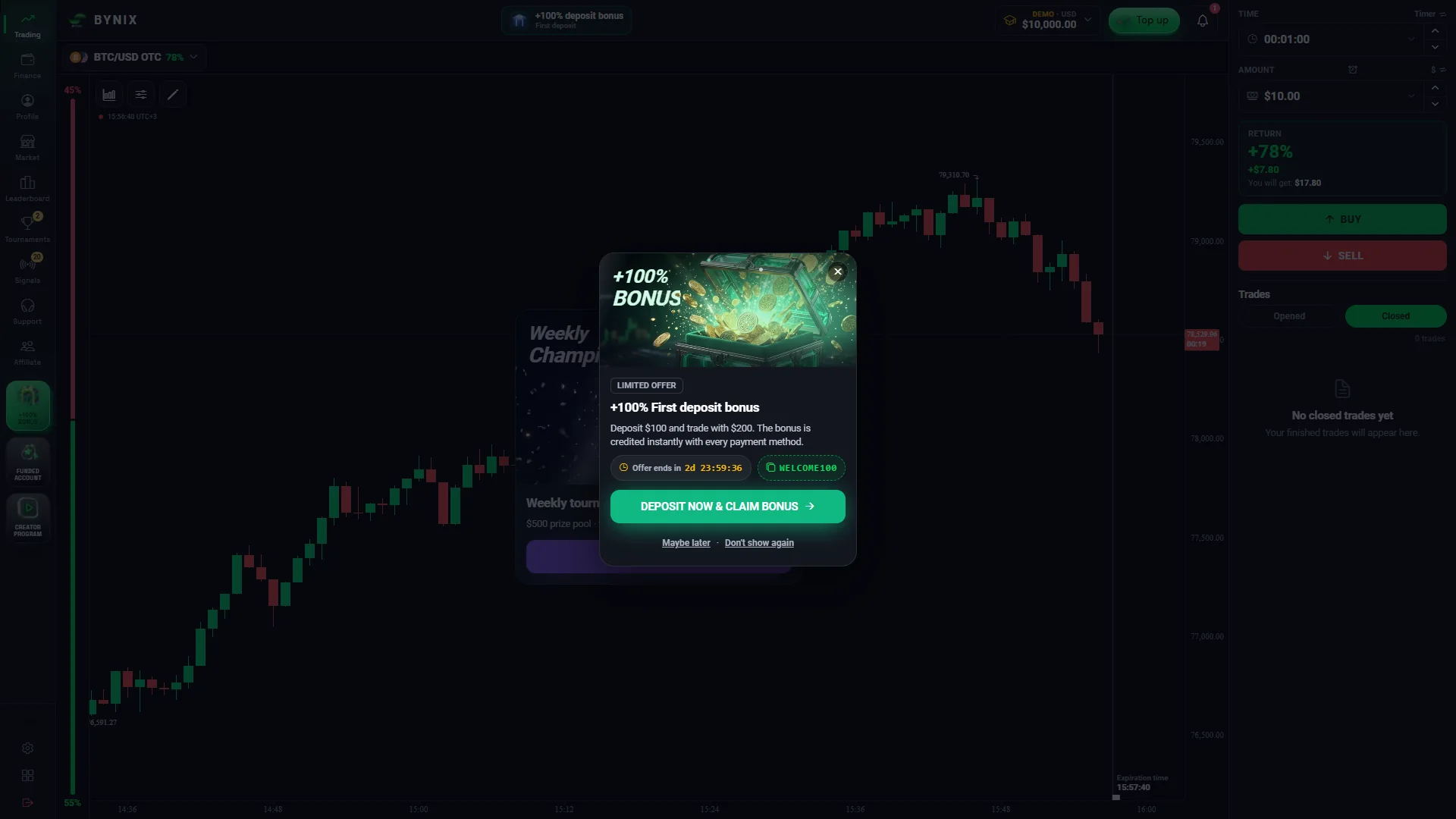
Bynix also promotes a welcome bonus on eligible initial deposits. The bonus percentage, minimum qualifying payment and any trading-volume conditions depend on the active offer. The cashier should show the applicable promotion before confirmation. A bonus is not the same thing as immediately withdrawable cash, so the offer terms matter when comparing options.
Quick answers
Bynix Broker Frequently Asked Questions
DigitalOptions.co is an independent guide, not the operator. For account access, use the sponsored platform button on this page rather than treating this article as the broker’s own login screen.
What is Bynix Broker?
Bynix Broker is a binary-options trading platform with OTC-labelled markets, CALL/PUT contracts, a free virtual demo and an optional Funded challenge programme. DigitalOptions.co provides independent instructions for accessing and navigating the service.
How do I log in to Bynix Broker?
Use the platform link on this page, choose Log In and enter the email and password associated with your existing account. If you cannot sign in, use the platform’s password-recovery option.
How do I register a Bynix account?
Open the registration form, enter your email, create a password and provide any requested country details. Complete the confirmation step using the one-time code sent to your email address.
Can I try the Bynix demo without depositing money?
Yes. The platform describes a free demo entry that lets visitors explore virtual trading without making a deposit. Its instant-demo route is distinct from the full email-confirmed registration process.
How much virtual money is in the Bynix demo?
The demo starts with $10,000 in virtual funds. The balance is for practice only and is not withdrawable; the platform also describes a refill option in the account menu.
Can I install Bynix on Android or iPhone?
Yes, as a browser-installed web app where supported. Android users can use the browser’s Install app or Add to Home screen option; iPhone users can use Safari’s Add to Home Screen command. A separate APK should only be downloaded if the platform has actually released it.
What trading markets and expiries are available?
The platform describes OTC contracts linked to forex, crypto, metals and indices, with expiry options ranging from seconds to longer durations. The precise markets, payout and timing available to you are shown on the current trading ticket.
What is Bynix Funded, and how do challenges work?
Bynix Funded offers Direct and evaluation-based account models. A trader chooses a programme and any applicable fee, then follows its profit-target, loss-limit and trading-day rules to qualify for the offered account and profit share.
What is the minimum deposit and how do withdrawals work?
Bynix deposit minimums vary with the payment method. A captured registration panel advertised $10, while our USDT TRC-20 cashier screenshot showed $5 for that route. Withdrawals are requested from the account area and may require email confirmation or identity verification. Check the currently displayed terms before selecting a payment method.
Choose your next step
Open Bynix and Choose Your Trading Mode
Start with the $10,000 demo to learn the trading screen, register to keep an account, or compare the Funded options if that is the product you came for. The same Bynix access route lets you choose the next action on the platform.
Independent DigitalOptions.co guide · Affiliate link · Trading involves the possibility of losing money. Service availability varies by jurisdiction.